

Play with NexTurn devices
NexTurn turn devices are physical, per-player turn trackers that light up to show whose turn it is. The table always knows who's up, and turn and game timing happen on their own.
Each player gets a device in their color. Only the active player's device is lit, so a glance around the table tells everyone whose turn it is.
A player taps their device to end their turn; the next player's device lights up. Turn and total game time are tracked automatically.
When a game has a Flow, the devices drive each phase (race rounds, follow actions, combat, breaks) so the right players light up at the right time.
Don't have devices yet? You can still play fully on phones. When you're ready to light up the table, grab a set from the shop.
No devices? Everything in NexTurn works phone-only. Devices just make turn order easier at the table.
Join a game from your phone
When a friend hosts a game, you can join from your own phone and it acts as your turn device, no hardware needed. Phones and devices can mix in the same game.
The host opens their game and shares a short join code (like PLAY-8FKD) or a QR code. Anyone at the table can join.
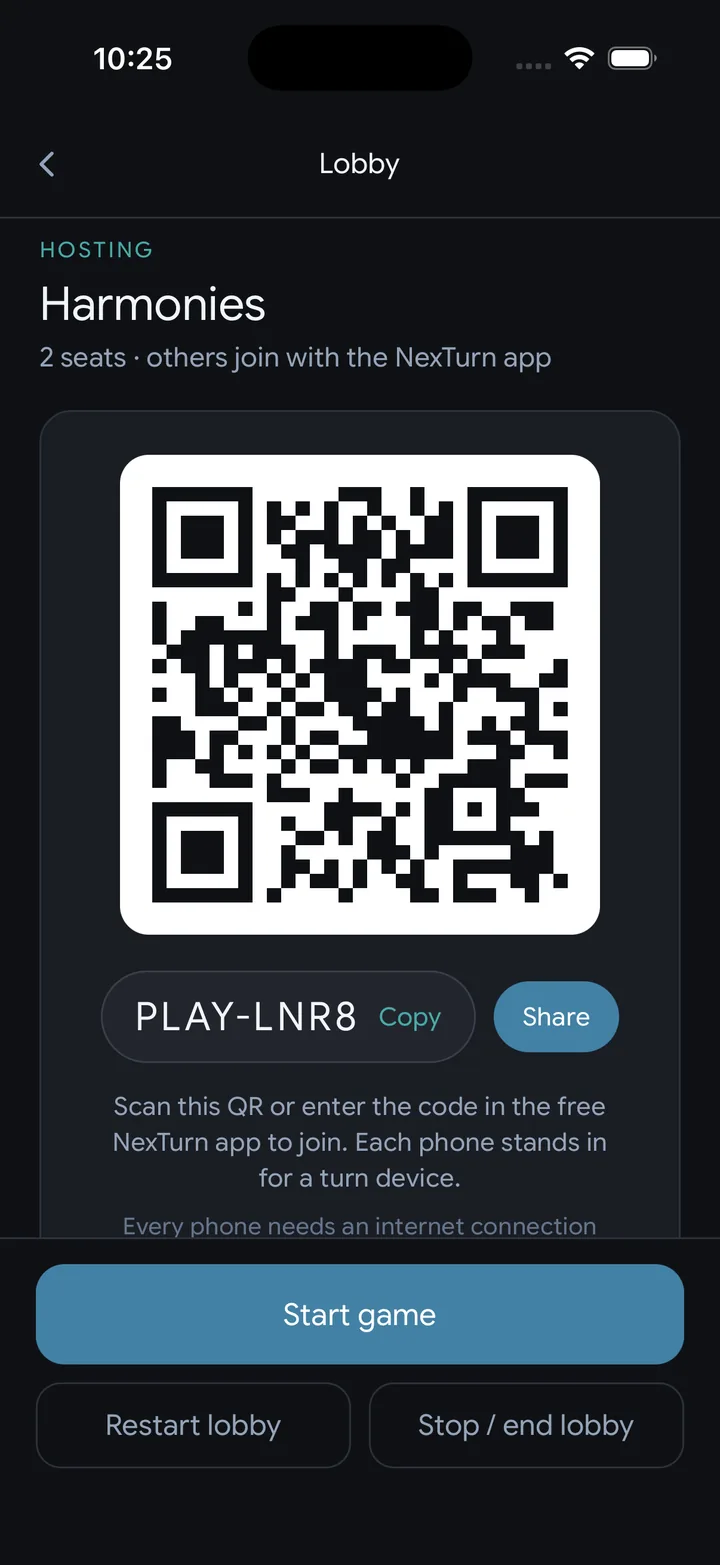
On the home screen, tap "Join a Game" under New Game. Scan the QR code or type the join code.
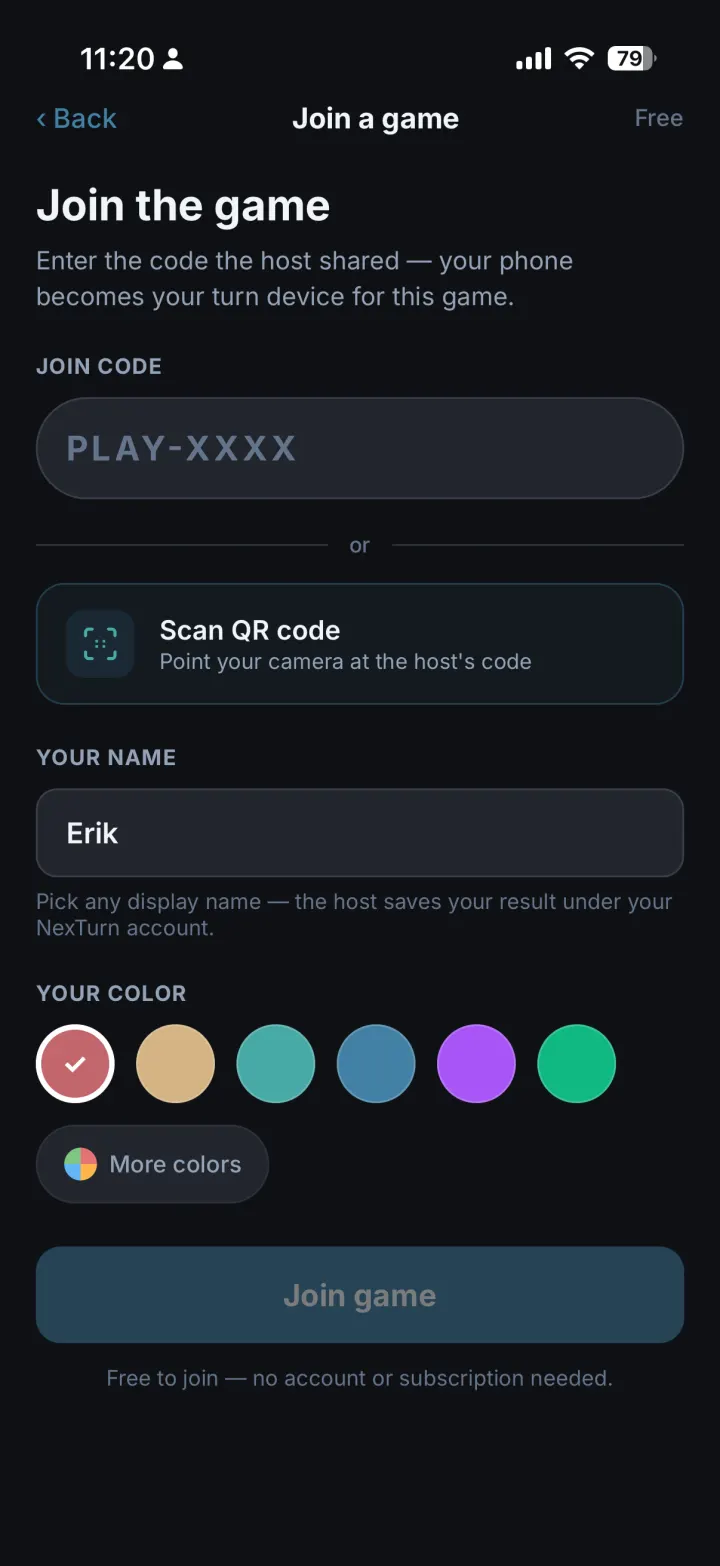
Choose your seat and color (or your reserved seat fills in automatically if you're signed in). Then you're in the lobby.
Your phone shows whose turn it is and the current Flow phase. Tap to end your turn.
Enter your score at game end and it updates the host's session. If you're signed in, the game is also saved to your own history and stats.
Joining a friend's game is always free, and needs no NexTurn Pro. Hosting your own games and full tracking come with NexTurn Pro, a one-time upgrade inside the app.
Export plays to other players
When you finish a game, NexTurn can let the other players at the table add it to their own history and log it to their own BoardGameGeek, without you ever entering anyone else's account.
Open the Friends tab, tap Add Friend, and search their NexTurn username, then send a request. (You'll need your own username set in Settings first.) Once they accept, you're connected.
In Settings → People → Players, open the player you use for them and use "Link NexTurn Friend" to attach their username. That saved player is now tied to their account.
When you finish and record a session with that player, NexTurn matches them by their linked account.
Matched players receive a push notification that a game was logged with them.
Each player can add the session to their own NexTurn history, log it to their own BoardGameGeek account, or both.
Each player logs to BoardGameGeek from their own device with their own account. You never enter anyone else's credentials.
The Me tab
The Me tab is your personal home. Every game you track feeds a dashboard of your pace, wins, finishes, skill and goals, plus a calendar of your gaming life.
Four tiles up top: H-Index (how many games you've played a lot), Turn Pace vs the community, overall Win Rate, and your Skill Rating. Tap the H-Index tile for a full explainer.
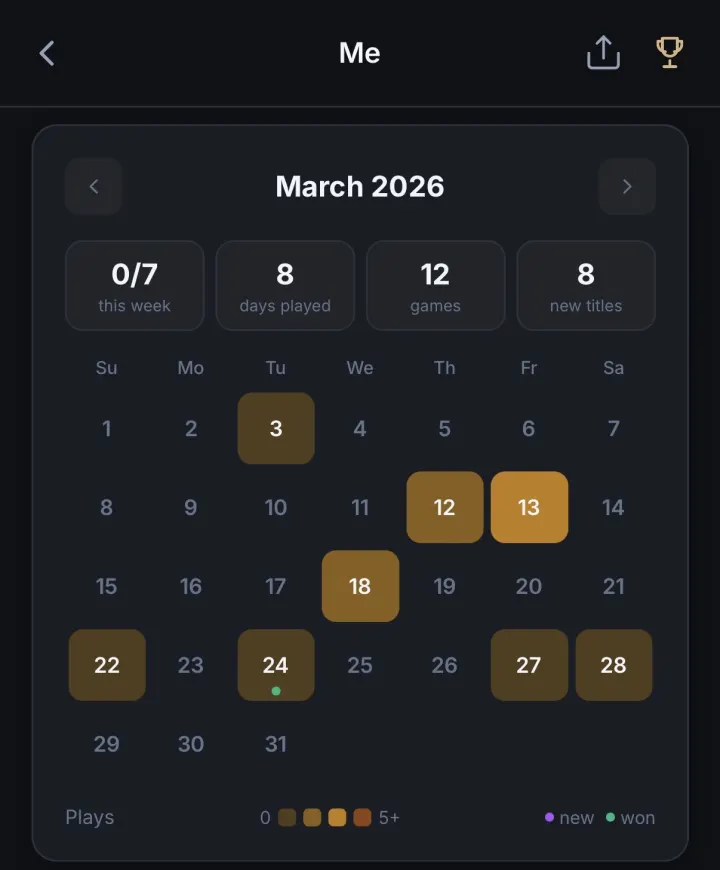
A month-by-month heatmap of what you played, with markers for wins and first plays of a new game. Tap a day to see that day's games (wins get a trophy) and which streaks that day counted toward.
Your active streaks and challenges show here with live progress. Use Manage to add or edit them.
When a friend invites you to a shared challenge, accept or dismiss it right here. Accepted challenges join your list read-only.
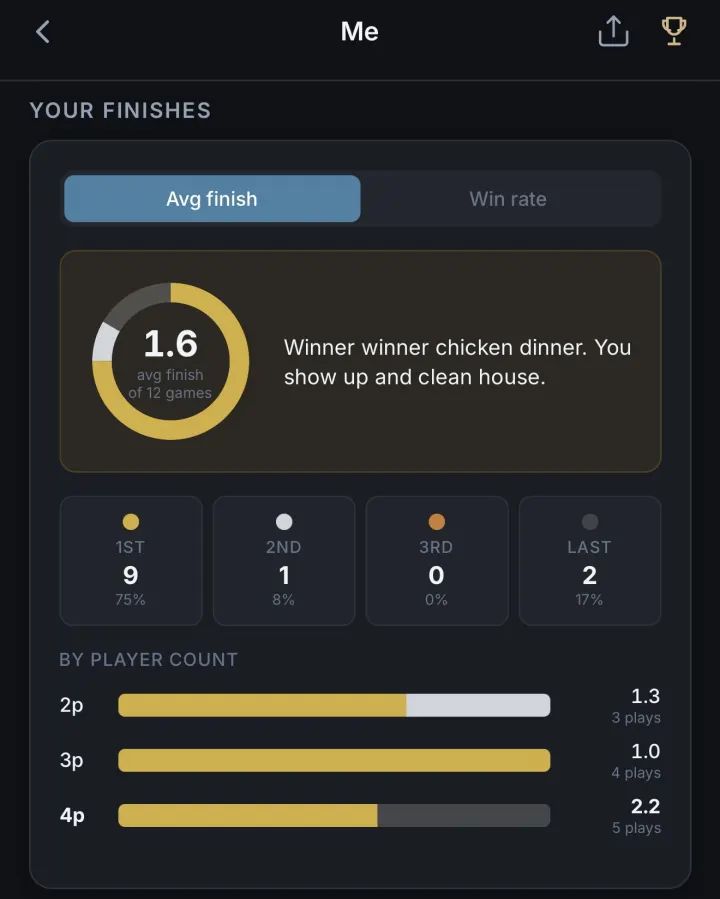
Toggle between your average finishing position (a 1st/2nd/3rd/last breakdown) and your win rate vs. the expected baseline, both split by player count.
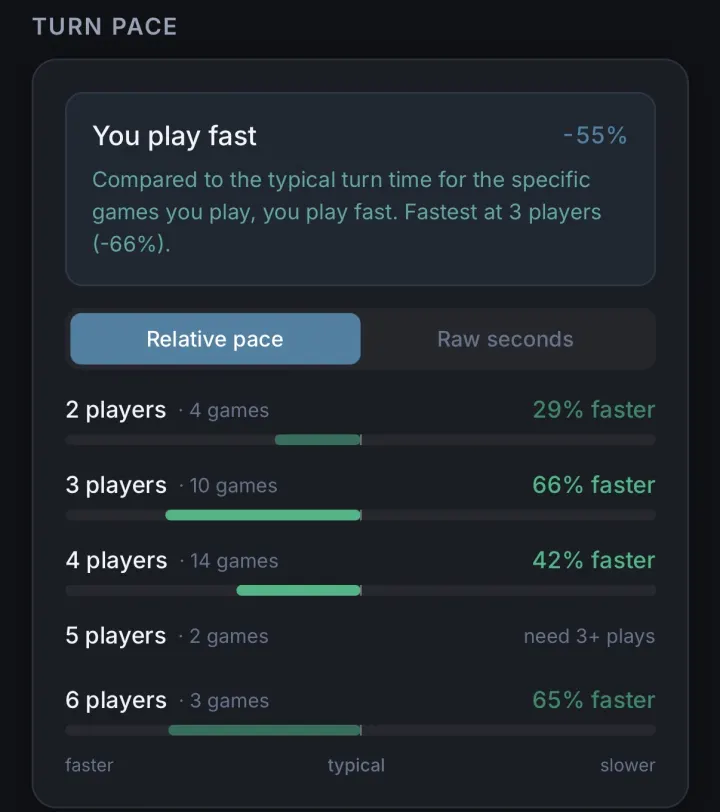
How fast you play vs. the community, broken down per player count. Switch between a relative (%) and raw-seconds view.
A chess-style ELO from your finishing positions, with your tier, percentile vs. friends, recent rating changes explained in plain English, and your best games by rating. You can also pick an opponent for a head-to-head.
Tap the trophy in the header for your achievements. The share button opens your Monthly Rewind, a wrap-up of your gaming month (plays by week, finishes, notable games) you can swipe through and share.

Most of this gets better as you record more games, and some cards only unlock once you have enough tracked plays.
Streaks & challenges
Keep game night rolling with streaks (recurring goals like "play every week") and challenges (targets you set, like a 10×10). You can even team up on a challenge with friends.
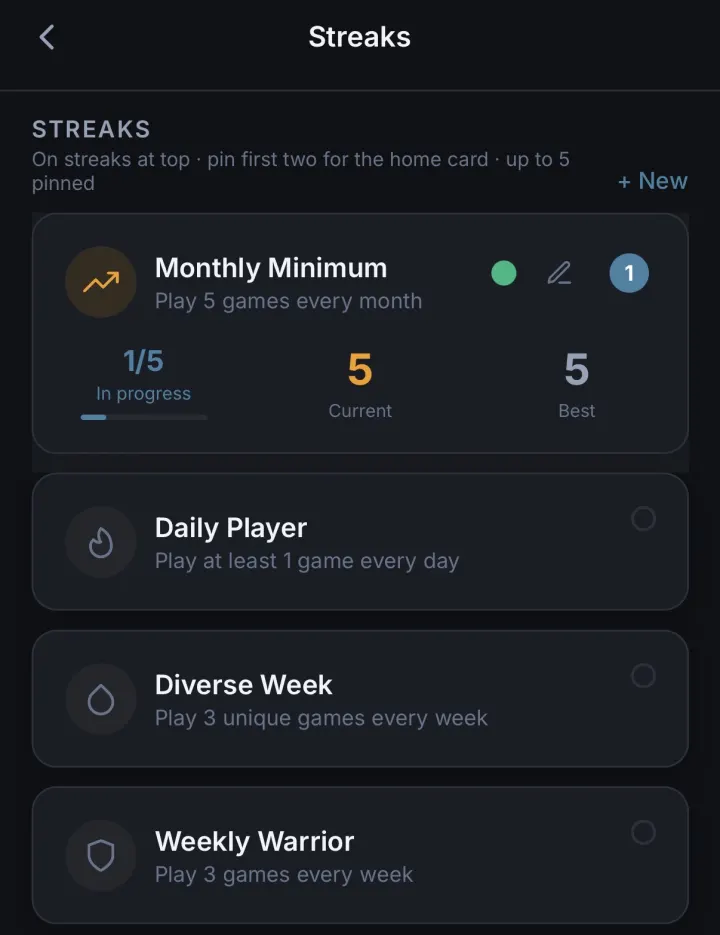
From the Me tab, open Streaks (Manage) to see the built-in streak types: games per week, a new game each month, weekend warrior, playing with more people, and more.
New accounts start with one streak (5 games a month). Toggle on any others, and tap the pencil to change the target, period, or add filters like days-of-week or player count.
Each period (day/week/month) either hits its target or breaks the run. Your current streak is the consecutive run; your best streak is the record.
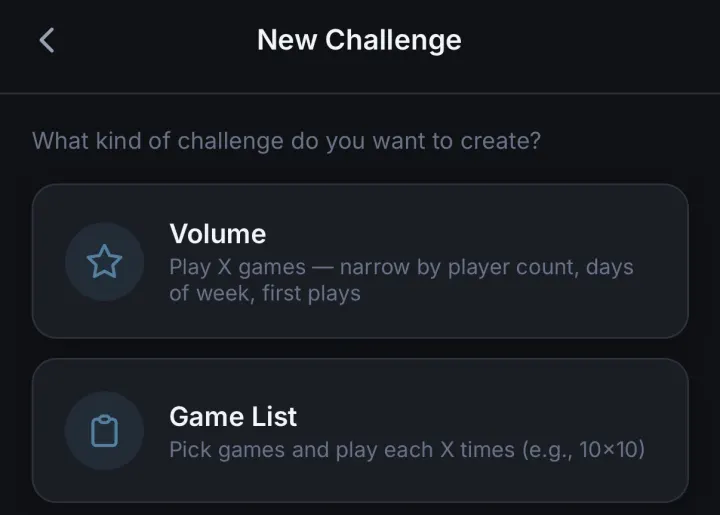
Set a Volume goal (play N qualifying games) or a Game List (a per-game tally, e.g. 10×10), with optional player-count, days-of-week and first-plays-only filters and a deadline.
On the challenge, open "Play With" and add friends by username (they must be accepted friends). Saving sends each of them an invite.
Invited friends see the challenge under Challenge Invites on their Me tab and tap Accept, and it joins their list read-only. Only the owner can edit it afterward.
A shared challenge counts sessions that include your linked collaborators. By default it needs all of them, so "play 10 games with Sam" advances only when Sam is in the game (you can relax it to "at least N of them"). Everyone sees the same live progress.
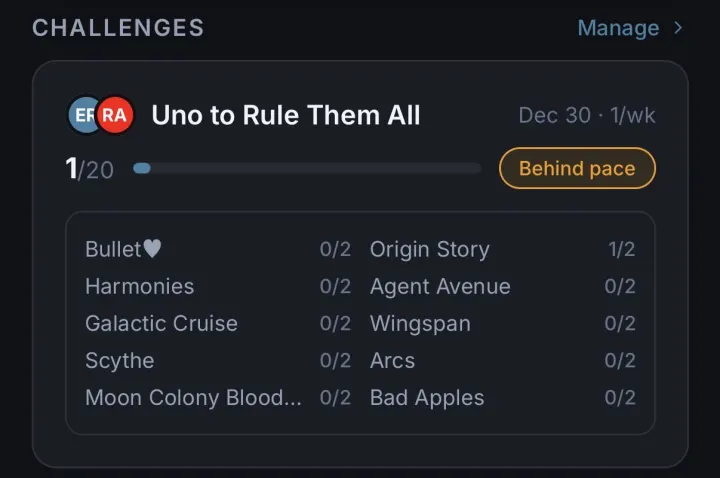
Pin up to five streaks or challenges you want to keep an eye on. Your top pins appear as Home Highlights and in the iOS widgets.
Swipe a streak or challenge to remove it (custom ones delete; default streaks just switch off).
Community content
Flows, scorepads, color palettes and variant sets made by other players. Browse, import and share them right from a game's profile.
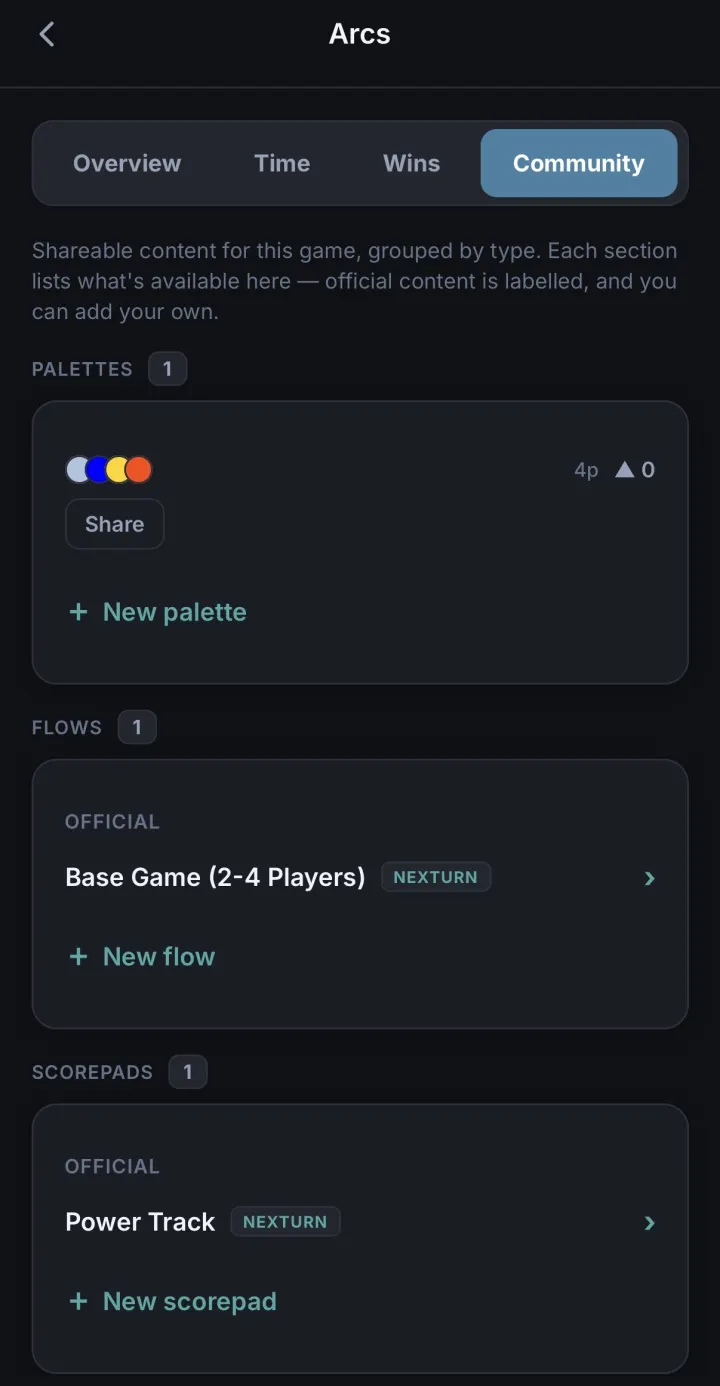
From a game profile, open the Community tab to see shared flows, scorepads, setup guides and variant sets. Color palettes have their own community browser on the game's palettes screen.
Tap to add it to your library. Copies you already have are recognized, so the same content can't pile up.
Upvote what works right from the list. The full community browser also lets you sort by Top or New and downvote low-quality submissions (which auto-hide once enough people do).
Established creators show a Trusted badge; NexTurn-made content carries a NexTurn badge and is pinned to the top.
Publish a flow, scorepad, palette or variant set. You can edit it in place later, and anyone who imported it sees an Update option once a newer version is up.
You can flag inappropriate or broken submissions for review from the community browser.
The Friends tab
The Friends tab connects you with the people you game with. See what they're playing, compare stats, and share plays and challenges.
Set a NexTurn username in Settings, then search a friend by @username and send a request. Accept, decline or cancel requests from here; you can also block or remove someone.
A feed of games your friends played, with their ratings and comments. It covers both sessions you shared and games they played without you. Tap a friend to filter the feed to just them.
Each friend card shows how many games you've played together, their favorite game, and their average turn pace.
See which games are hot in your friend group and the latest ratings friends have left. It makes a quick "what should we play" shortlist.
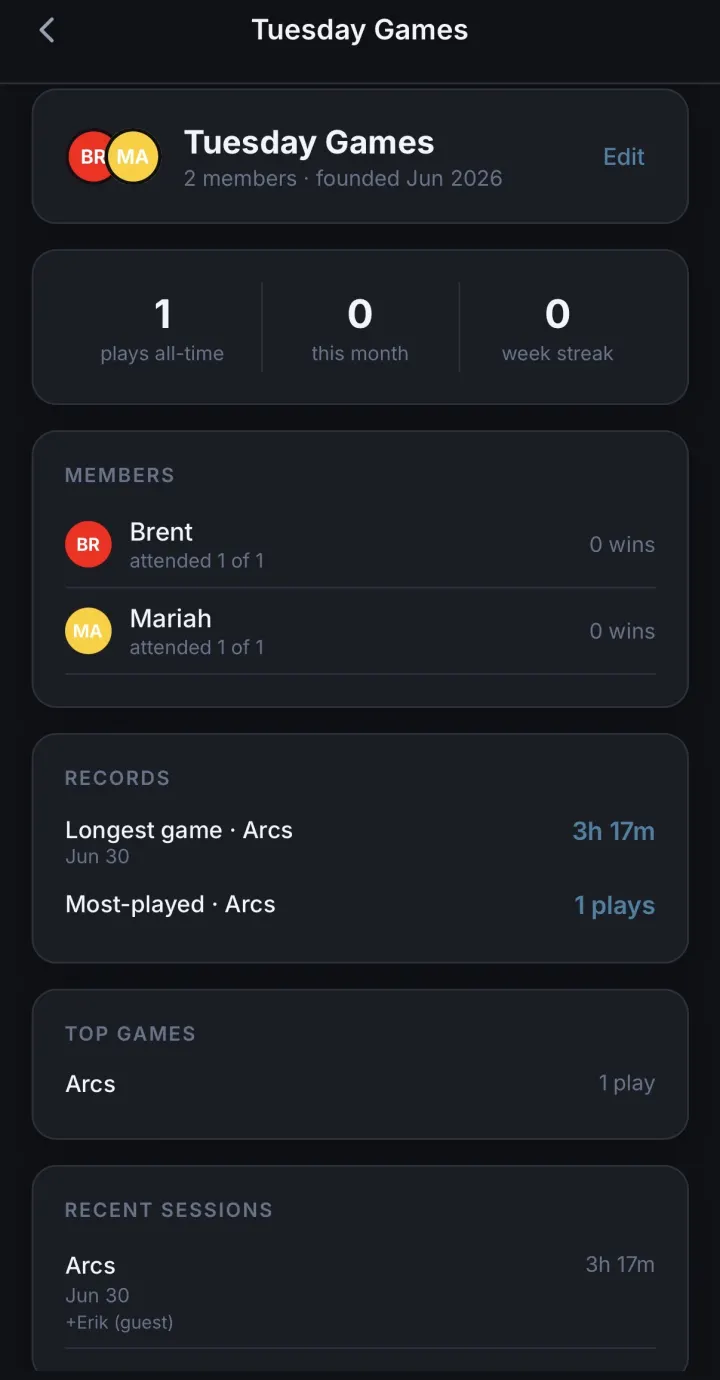
Under the Groups tab, create play groups to track group-level stats and summaries, and open a group for its own detail screen.
The friend activity feed needs a NexTurn account; blocking someone hides your activity from them.
Widgets & Home cards
See your streaks and challenges at a glance, as swipeable cards on your NexTurn Home screen and as widgets on your phone's home screen.
Both Home cards and widgets show your pinned items, so first pin the streaks/challenges you care about from the Me tab (up to five).
Your top pinned streaks and challenges appear as swipeable Highlights cards at the top of the Home tab, with live progress and pace. Swipe between them.

Touch and hold an empty spot on your iPhone home screen, tap the + in the corner, search "NexTurn", and pick a widget.
Shows your top pinned streaks with current and best counts and progress. Choose the small or medium size.
Shows your top pinned challenge with a live progress ring and pace. The medium size adds per-game progress or recent sessions.
Home cards and widgets update on their own as you record games. Keep your pins current and they'll always reflect your latest progress.
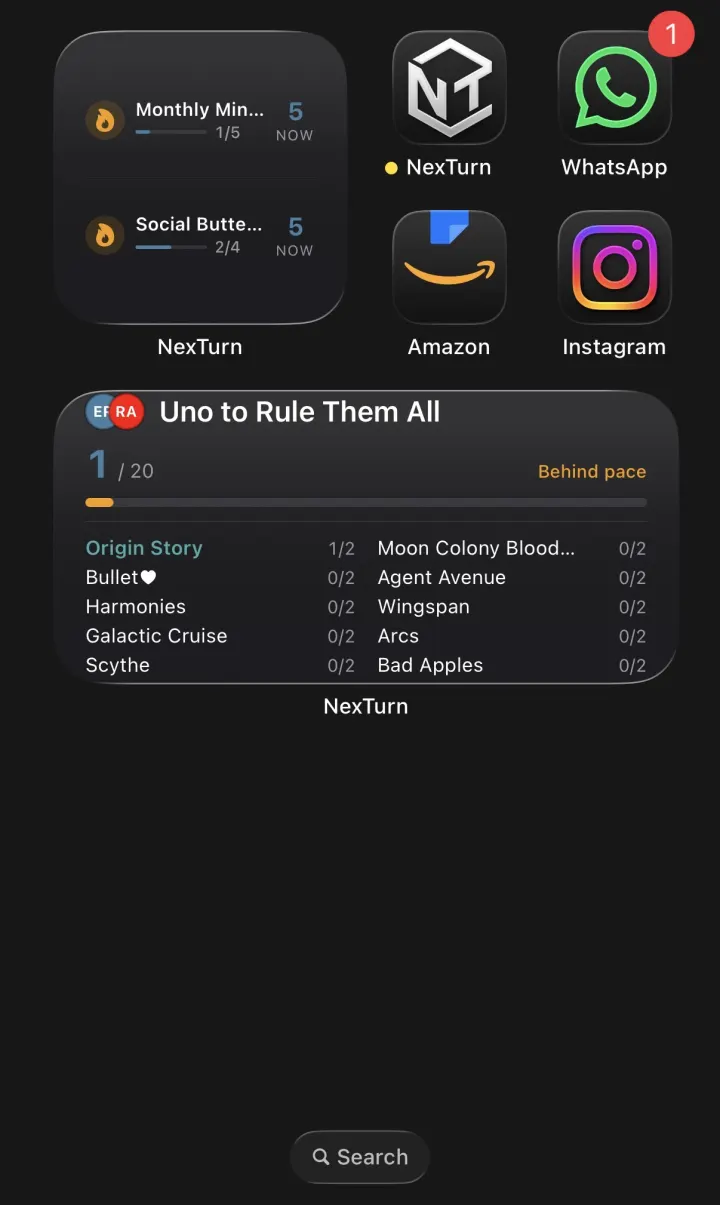
Home cards work everywhere; home-screen widgets are on iOS today, with Android on the way.
Creating a Flow
A flow is a reusable script for how a game's rounds, turns, and devices behave. Build one once and pick it whenever you start that game. Here's the builder walkthrough, a worked example, and the full reference.
The fast lane: Quick Flows
Don't need the full builder? In New Game, tap the dashed + Quick flow cell on the GAME FLOW row and describe one round from three step types — Simultaneous (everyone at once, press when done), In turns (around the table), and Shared step (a refill or reveal the whole table does together). Set turns, passing, rounds and the first-player rule, and it plays immediately. Every In-turns step states its own Direction — clockwise, counter-clockwise, or Manual, where the app opens the turn-order picker before the step and the table taps players in the order they go (how standings-driven games like Power Grid re-seat). Direction is enforced per step, so "counter-clockwise for two turns, then everyone at once, then clockwise for a turn" is three steps. A quick flow is a real flow: edit it in place with Edit in Quick Flow, change it mid-game from Settings, or open Edit in Flow Builder to grow it into everything below.
Every flow belongs to a game and has its own name, so one game can have several flows (e.g. a 2-player variant).
A round is made of phases. Add one phase per segment of play. The order you list them is the order they run each round.
The mode decides how devices light up. Turn Order = one player at a time, around the table. Race = everyone lit at once, tap off when done. Others cover drafting, bidding, combat, admin, and more.
For Turn Order / Race phases, set how many turns each player gets before the phase ends. Leave it open for "as many as needed."
End a phase with a yes/no question to branch the flow, for example a tie-break vote. Each answer points to where the flow goes next: another phase, the next question, or the round end.
Decide how the start player rotates between rounds: stay the same, go clockwise / counter-clockwise, or "Choose", which lights every device so the new start player can press in.
Optionally turn the whole-game clock into a countdown, like a digital sand timer. Set a length (e.g. 10 min), allow flipping it, and choose whether 0:00 ends the game or is just a guide.
Per phase you can override what a device button does, e.g. make the main button advance the whole phase instead of just passing the turn. Most flows never need this.
The GAME END card always sits at the foot of the structure map. Tap it and pick the shape that matches your rulebook's Game End sentence — final lap, immediate, end of the current phase, everyone passes, sudden death, fixed rounds, or equal turns. The seven shapes are mutually exclusive: switching replaces the old wiring and reuses your Final Scoring phase. The builder's checklist tracks the rest of the finish line — ending chosen, no TODO notes, a catalog match, a scorepad paired — and the round pill shows the press budget: how many button presses one round costs the table.
From rulebook to flow
The whole trick: read each sentence and ask "who acts, and how?" (a phase) or "does it branch on something only the table knows?" (a decision). Here are three sentences turning into a round:
↓ becomes ↓
Turns per player: 1. Each player takes one action, clockwise.
① "each player takes one action"All devices light; everyone acts, taps off when done.
② "all players … at the same time"③ A decision on the Contribute phase. Decisions are only for things the app can't know on its own, like whether a tie happened. Round number or player count never need one.
↻ New round: the start player rotates, then back to Take Action.
Both answers land on "Round ends," so the flow always converges and loops. That's how a branch stays resolvable instead of dead-ending.
One against many: Terrorscape
Some games seat one player against everyone else. The flow says so with seats and sides: three Survivor seats on the Survivors side, one Killer seat on the Killer side, the Killer last in turn order. When the game starts the sides become the teams, so the record shows which side won, and each phase names who takes turns in it:
↓ becomes ↓
Turns per player: 1. Only the three Survivor seats light up; the Killer's stays dark. A Survivor who is out taps Pass for the game and the phase completes without them.
① "the Survivors take their turns"One step for the whole table, nobody's clock running. The phase notes carry the detail — draw two discover cards, then tell the Killer where the noise is.
② "discover, and tell the Killer"Only the Killer's seat lights. Game over sits on this phase: tap it, tap the side that won, and everyone on that side takes 1st at Game End. Over many nights the app can then tell you how often the Killer wins, and at which table size.
③ "the Killer takes their turn"The other one-against-many shape, where the One answers each of the rest in turn (A, B, A, C, A, D …), is a single Survivors-only phase with "answered after each turn by" set to the Killer. Start from One against the rest in the builder and it comes set up that way; Terrorscape's shape is the same flow with that setting off and a Killer phase after it.
Phase modes
- Turn Order
- One player lit at a time, passing around the table. The classic mode.
- Race
- Everyone lit at once. Players act in any order and press when done — give the phase "turns per player" so it can complete itself. Optional: "finish order becomes the turn order" makes the press order the next phase's seating (Galaxy Trucker's flight line).
- Sync
- All players act simultaneously against one shared timer.
- Follow
- The active player declares an action, then every other player follows it — one at a time in order, or all at once under a shared timer. Author it as a modifier on a Turn Order phase: switch on "Allow follow" (Turns tab) rather than using a dedicated Follow mode, so turns-per-player, rounds and first-player rotation keep working alongside the follow window (Earth; Puerto Rico–style role selection; Eminent Domain).
- Combat
- A dedicated combat segment with its own timing, separate from normal turns.
- Admin
- A no-player upkeep step (reset the board, deal cards). Time is tracked but no one is "active."
- Optional
- A phase players may or may not take. Useful for "only the active player acts" beats.
- Decision
- A branching yes/no question rather than a play segment.
- Drafting
- Turn-order selection from a shared pool, like card or tile drafts. Set "turns per player" to how many picks each player gets before the phase ends (e.g. 1 for "pick one, pass").
- Bidding
- A sequential auction: players bid one at a time in turn order. Usually 1 turn each; leave turns open to keep going around until everyone passes.
- Worker placement (toggle)
- Not a mode of its own, but a set of options you switch on for a Turn Order phase. Use it only when players place independently and drop out: someone can pass and is then skipped while others keep going, or players have different / growing numbers of workers. In play, your button places the chosen worker count, the card keeps a running "placed" tally, and Pass sits in the action bar (and on your device's small button).
- "Turns per player" vs worker placement
- If every player takes the same fixed number of turns and then the phase ends, don't use worker placement. Just set "turns per player" to that number on a Turn Order phase (e.g. 3). Worker placement earns its keep only when players pass early, drop out, or hold unequal pools.
- Turn-order under the hood
- Drafting, Bidding and worker-placement phases all share the turn-order scaffolding: one device lit at a time, the per-turn timer, and auto-advance once the turn limit is hit. The distinct mode just labels the phase and its icon so players know what kind of pick it is.
Rounds & first player
- Max rounds
- Cap the number of rounds, or leave it open (∞) to end the game manually.
- Same player
- The start player never changes.
- Clockwise / Counter-CW
- The start player coin passes automatically each round.
- Choose
- Every device lights at round start; whoever presses first becomes the new start player.
- Highest / lowest score
- The start player passes to whoever currently has the highest (or lowest) score.
Decisions & branching
- Yes / No targets
- Each answer routes the flow somewhere: another phase, re-set turn order, pick a new first player, or the round end.
- More than two options
- A decision can branch into more than yes/no. Add 2+ named options (e.g. Lead a Role / Follow / Think). Each option routes exactly like a Yes/No target, and the gameplay overlay shows one button per option. Use it for a genuine 3+-way turn fork (Glory to Rome, TI4 agenda votes).
- Round end
- Finish the round and roll into the next (applying first-player rotation).
Reactions & interrupts
- Allow reactions (steal)
- Turn this on for a phase where a player who isn't the active player may jump in, like an "on reveal" ability or "any player may respond." They resolve out of turn, then play resumes to whoever's turn it was.
- Follow vs. reactions
- Follow mode is "everyone does the leader's action in order" (see Phase modes → Follow). Reactions are one player interrupting and then handing the turn back. Use whichever the rulebook describes.
- Passing (sit out)
- Turn on any of Turn / Round / Game to give the active player a Pass button. Turn = skip just this go. Round = out until the round rolls over. Game = out for the rest. Passed players stay on the roster and in the final standings (unlike removing a player); turn order just skips them. Use it for games where a player can be knocked out or choose to sit but still place (Unmatched, elimination games).
- Reverse button passes
- Once a Pass scope is on, you can remap each device's Prev-side button to fire Pass instead of "previous player", which is handy when the table plays on the pucks. It targets the scope you pick.
After a phase
- Pick 1st player after
- When this phase ends, prompt for the single new start player before the next phase begins.
- Re-set order after
- When this phase ends (a turn limit, all workers placed, Next Phase, or an admin phase's Next), the table re-picks the full turn order before play continues. Works on any phase shape; put it on the last phase of the round for games like Power Grid where standings set the new order. A device-button phase jump is the one exit that skips it.
Game timer
- Countdown
- Count the whole-game clock down from a set length instead of up.
- Length
- Any number of minutes (default 10).
- End game at 0:00
- On = the app ends the game when time runs out. Off = display only; use a physical sand timer.
- Allow flipping
- Adds a Flip control that sets remaining time to (length − remaining), like flipping a sand timer.
Device buttons
- Main button
- Default passes the turn. Can be overridden to advance the whole phase, enter a follow action, and more.
- Secondary buttons
- Map to actions like combat, admin, or follow when a phase needs them.
Creating a setup guide
A setup guide is a step-by-step checklist for physically setting up a game: box contents, board layout, starting resources. Build one once and it's there on the game's profile for every session.
A setup guide belongs to a game and has a name (e.g. "Standard Setup" or "2-Player Setup"), so one game can have several.
Min and max players this setup applies to, which helps when a game sets up differently at 2 vs 5 players.
Each step is a short title plus an instruction, with one physical action per step (place the board, deal starting resources, seed the market…). Reorder with the ↑ ↓ arrows.
Saved guides live on the game's profile under Setup. Edit them any time.
Tap "Share with community" to publish it so other players setting up the same game can import it.
Ready to put it on the table? NexTurn is out now on iOS and Android.